

How To Change Date Format In Excel - Simple Steps

Changing the date format in MS Excel is a valuable feature that allows you to display dates in various styles. Excel offers versatile options in presenting dates, whether you have a large dataset or merely manage a list of events. This way, your spreadsheets become clear, consistent, and aligned with your formatting requirements. Whether you prefer the short date format, such as "MM/DD/YYYY," or the long date format, like "Month Day, Year," Excel makes it easy to make changes and still maintain clarity in your document. This article will cover how to change the date format in Excel, using examples to help us understand the concept better.

Spreadsheets store dates as serial numbers; each integer represents a single day. When a user enters a date in a cell, it converts to its corresponding serial number. The format is then changed to date. There are different procedures that can help us have a unified format.
Content
- Changing Date Formats Manually
- Changing System Settings
- Highlighting The Relevant Date Fields On Your Spreadsheet
- Resize the Cell Size
If you want to upskill yourself for free, then consider exploring FREE Online Courses by top online course providers like Coursera, edX, Udemy, NPTEL, etc., across various domains, like Technology, Data Science, Management, Finance, etc., and improve your hiring chances.
Changing Date Formats Manually
Writing the date in the required cell is straightforward but not the most recommended one. It is useful when there is little data you want to feed, and if it is common to several cells, you only have to use the copy-and-paste function. To do this:

- Copy the date into one of the cells and then click the right mouse on the date.
- Select the “copy” option and place the pointer in the cell where you want to paste the data.
- Click on that cell and select “paste.”
 Read Later
Best-suited MS Excel courses for you
Learn MS Excel with these high-rated online courses

Changing System Settings
1 – To set a different default date and/or time format on your computer, go to the Control Panel and click Region.

2 – Select – Change the date, time, or number format.

Must Explore – Free MS Excel Courses
3 – You would need to select a format to implement the default date and time. There are two options –
- Short date – Refers to the abbreviated version: e.g. 8/11/2014.
- Long date – Refers to the wordier form: e.g. August 11, 2014.
Whichever format you choose will be standardized across all Windows applications, including Excel. Click “OK” to apply your selection.
4 – Review the short date options. We will use August 11, 2014, as an example.
- M/d/yyyy: 8/11/2014
- M/d/yy: 8/11/14
- MM/dd/yy: 08/11/14
- MM/dd/yyyy: 08/11/2014
- yy/MM/dd: 15/06/02
- yyyy-MM-dd: 2014-08-11
- dd-MMM-yy: 11-Aug-14
Review the long date options. We will use August 11, 2014, as an example.
- dddd, MMMM dd, yyyy: Monday, August 11, 2014
- dddd, MMMM d, yyyy: Monday, August 11, 2014
- MMMM d, yyyy: August 11, 2015
- dddd, d MMMM, yyyy: Monday, 11 August, 2014
- dd MMMM, yyyy: 11 August, 2014
If you want to boost your data analytical skills then start with learning MS Excel! We recommend you to select the most suitable MS Excel online courses as per your professional and personal goals. Learn how to use both basic and advanced Excel formulas and functions, dashboards, macros, pivot tables, and data analysis tools to improve business insights and reporting.


3. Highlighting The Relevant Date Fields On Your Spreadsheet
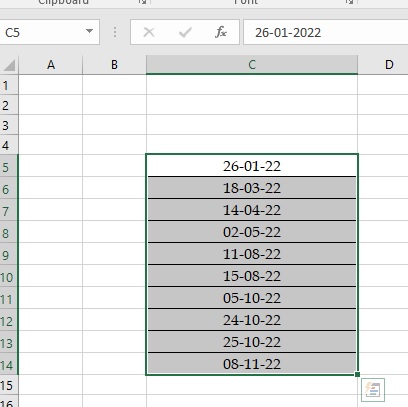
If dates are aligned in a column
1 – Left-click the top letter. Select and format the entire column.
2 – Right-click for an action menu.

3 – Click Format Cells to get the date options. You will see the options in the dropdown menu. Choose the one that you prefer.

You will now see that the date format changes for the entire column.


If dates are aligned in a row
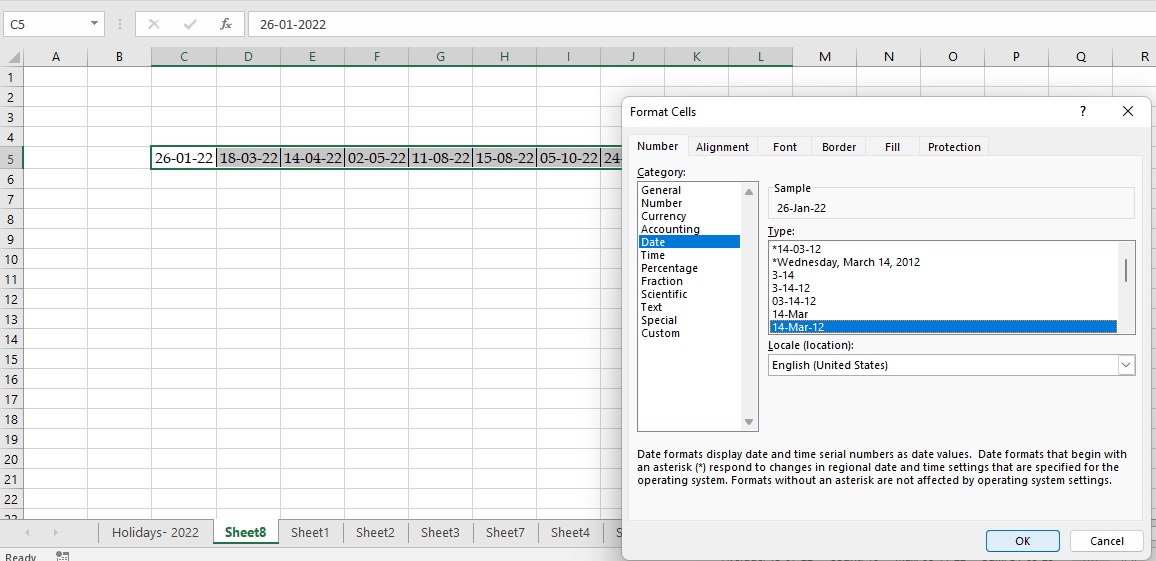
1 – Highlight the section or cell you want to change.
2 – Left-click on the number at the far left of the row to select all the cells.

3 – Choose the option you like and click OK.
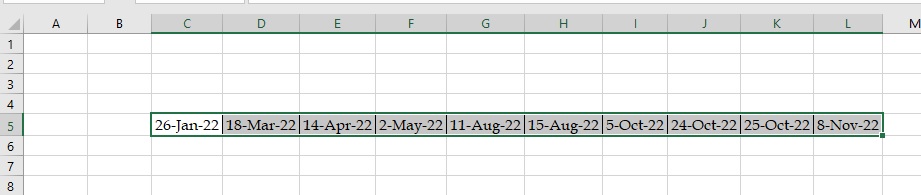
The date format is changed.
Using the Format option in the Data
1 – Select your data and go to Ribbon.
2 – Hover to Cells ⇒ Format ⇒ Format Cells

3 – You will get the options as previously. Select the one of your choices from the dropdown menu.

4. Click OK. Your date format is now changed.


4. Resize the Cell Size
In general, MS Excel understands dates exceptionally well, and you are unlikely to encounter any barriers when working with them. But if you still face the issue where the Excel date format is not working, follow the given troubleshooting tips to eliminate the date format not changing in the Excel issue.
If the cell needs more room to fit the full date and you see multiple hash signs (#####) instead of the dates in your Excel worksheet, then the cells are not comprehensive for the end dates that you enter.
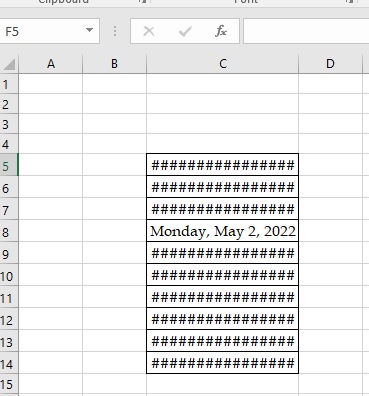
Double-click the column’s right edge to correct the date automatically to resize it. Or, to set the width of the column, drag it to the right edge to fix the Excel date format not working problem.
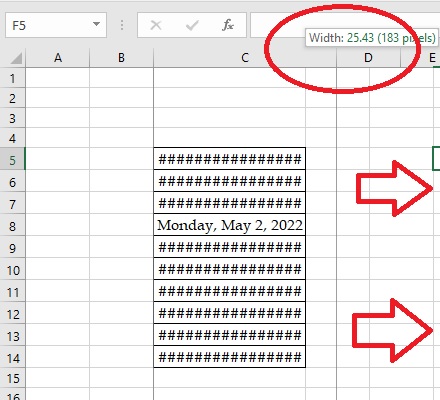
You will see the set date format now.
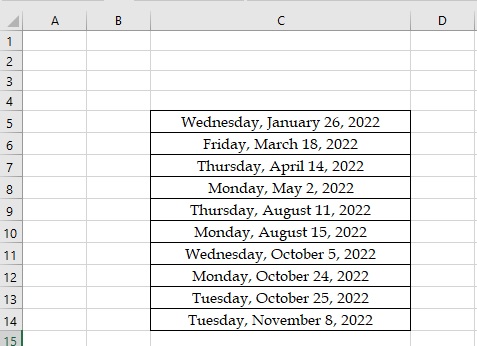
This method is applicable for date format staying the same in Excel 2007, 2013, and 2016.
Conclusion
Changing the date format in Excel is one of the simplest ways to present your data in the most useful and consistent way. It could be through the Format Cells option or through custom date formats applied, where the appearance of dates is changed according to what suits one's needs in reporting, analysis, or presentation. A better understanding of the date options improves your ability to clarify and use your Excel documents.
We hope this article helped you to understand how to change date format in Excel.
Read More in Excel
MIS Reports in Excel | Excel Interview Questions | Basic Excel Formulas | Difference Between Formula and Function in Excel | Average Function in Excel | Introduction to MS Excel | HLOOKUP in Excel | ROW and COLUMN in Excel | Financial Modelling in Excel | Percentage In Excel | Remove Duplicates In Excel | Merge Cells in Excel | MIN and MAX Functions in Excel | Combine Text Strings in Excel | Import Data from PDF to Excel | Pivot Table In Excel | How To Enable Macros In Excel | How to Import Text Files to Excel | TRIM Function in Excel
FAQs - How to Change Date Format in Excel?
How can I quickly switch between different date formats?
To quickly switch between different date formats, here are two appoaches to follow -
Keyboard shortcut: Use Ctrl+1 (Windows) or Command+1 (Mac) to open "Format Cells". Press F4 to cycle through recently used formats.
Format Painter:
- Select a cell with the desired format.
- Click the "Format Painter" brush on the Home tab.
- Click the cell(s) you want to change.
Can I create my custom date format?
Yes, you can create your custom date format by selecting "Custom" in the "Format Cells" window and using codes like "d" for day, "m" for month, and "y" for year.
How do I change the default date format for new workbooks?
To change the default date format for new workbooks -
- Go to Options: Click "File" > "Options."
- Advanced settings: In the "Options" window, navigate to "Advanced."
- General options: Scroll down to "General" settings.
- Choose format: Under "When creating new workbooks," select your preferred default format.
What happens if I change the date format of a cell containing a text string?
Change in the date format of a cell containing a text string may lead to the following -
- Excel might interpret the text as a date and display unexpected results.
- In some cases, you might get error messages if the text cannot be converted to a valid date.
- Only change the format of cells you know contain actual dates to avoid data corruption.
What are the most common date formats used in Excel
Some of the most common date formats used in Excel are -
- DD/MM/YYYY (e.g., 05/02/2024)
- MM/DD/YYYY (e.g., 02/05/2024)
- YYYY/MM/DD (e.g., 2024/02/05)
- Short date (e.g., 5-Feb)
- Long date (e.g., February 5, 2024)

Comments
Top Picks & New Arrivals





Rashmi Karan is a writer and editor with more than 15 years of exp., focusing on educational content. Her expertise is IT & Software domain. She also creates articles on trending tech like data science,