JEE Main 2014: Instructions for online examination
 Call 8585951111Got Doubts?

JEE Main 2014 commenced on April 9 and will be conducted on three more days i.e. April 11, 12 and 19, 2014. According to the official website of JEE, the total duration of the exam is 180 minutes and the paper is spread across three sections – Physics, Chemistry and Mathematics.
Unlike the offline exam, the online exam will feature a clock (countdown timer) set at the server and will be displayed in the top right corner of screen. The purpose of the timer is to show aspirants’ the remaining time available for them to complete the exam.
As soon as the timer strikes zero, the exam will come to an end itself. Students are not required to end or submit the examination. ¼ (one fourth) marks i.e. one mark will be deducted for each wrong answer. However, no marks will be deducted from the total score if the question has not been attempted.

The question palette on the right side of screen will show the status of each question via one of the following symbols:
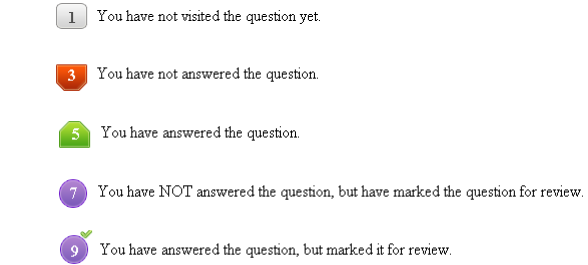
The Marked for Review status for a question basically means that you would like to look at that question again. If a question is answered and Marked for Review, your answer for that question will be considered in the evaluation.
Navigating to a question:
Follow the given below the instructions to navigate to a question in the online paper:
- Click on the question number in the Question Palette to go directly to that question.
- Remember to click ‘Save & Next’ to save your answer for the current question and then proceed to the next question
- Click on ‘Mark for Review & Next’ to save your answer for the current question, mark it for review, and then proceed to the next question.
- Please note that if you go on another question directly by clicking on its question number, then your answer for the current question will not be saved.
- To view all the questions, click on the Question Paper button. Remember that options of MCQs will be displayed.
Answering a Question:
Follow the steps below to answer multiple choice questions:
- Click on one of the options to select an answer.
- Click on the Clear Response Button or the chosen option again to deselect the answer your chose first.
- Click on the button of another option to change your chosen answer.
- You must click on the ‘Save & Next’ button to save your number
- Click on the Mark for Review & Next button to mark the question for review. The answer will be considered in the evaluation.
- To change your answer to a question that has already been answered, first select that question for answering and then follow the procedure for answering that type of question.
Note: Questions for which option has been chosen and answers are saved or marked for review will be considered for evaluation.
Explore more:
- Shiksha.com launches JEE Main 2014 College Predictor Tool
- JEE Main 2014 College Predictor: Find your college and branch
- JEE Main 2014 College Predictor: Know college cut-offs
- JEE Main 2014 College Predictor: Find college for a branch
