
NDA Application Form 2026 OUT: Last Date to Apply Online for UPSC NDA/NA 2 (June 11)
National Defence Academy & Naval Academy Exam 2026 ( NDA )


NDA 2 2026 Exam
13 Sep '26


NDA Application Form 2026: The Union Public Service Commission extended the last date to apply for the NDA 2 exam 2026. The last date to apply was June 11 instead of June 9. Candidates who are interested in giving the UPSC NDA 2 exam need to fill out the application form. The NDA 2 application form link was activated on May 20, 2026. To apply for the exam, candidates required UPSC One Time Registration (OTR) number to fill out the NDA form.
The candidates are suggested to read and understand all the eligibility conditions mentioned in the official NDA notification.The exam will be conducted on September 13, 2026 in two sessions. Scroll down for more details about the NDA Application form 2026.
- Details Required for NDA Application Form 2026
- NDA Exam Schedule 2026
- How to fill NDA Online Form 2026?
- NDA Application Fee 2026
- NDA Application Form Correction Window
- NDA Application Form 2026 FAQs

Details Required for NDA Application Form 2026
It is crucial for the candidates to ensure that all the eligibility parameters should be satisfied by the candidate and also enter the valid details online in the application form to avoid having their candidature cancelled. The details required for registration are mentioned below:
- Name of a candidate
- Date of birth
- Gender
- Fathers' name
- Mothers' name
- Minority status
- Valid Mobile Number
- Valid Email ID
- Board Exam Roll Number
- Security Question
To join the Indian Armed Forces, NDA application form is the first step. Candidates should meet all the eligibility criteria while filling out the form and also need to declare their branch preferences.

Commonly asked questions
The age limit is 16.5 to 19.5 years
Candidates who have passed Class 12 can apply
If your have changed your Name, select "Yes" for "Have your ever changed Name" option while registering in OTR, then mention your Changed Name in the column "Changed Name".
NDA exam is conducted across multiple test centres in more than 70 cities. The exam is conducted in two shifts-morning and afternoon. Candidates are required to appear in both shifts. The details regarding the NDA exam centre are mentioned on the admit card. There is a ceiling on the number of candidates allotted to each of the centres except Chennai, Dispur, Kolkata and Nagpur. Allotment of NDA centres is done on the first-apply-firstallot basis and once the capacity of a particular centre is attained, the same is frozen. Applicants who cannot get a centre of their choice due to ceiling, are required to choose a NDA exam centre from the remaining ones. Applicants should apply early so that they get their preferred exam centre.
NDA Exam Schedule 2026
Take a look at the table below for the complete schedule of NDA 2026 exam
| Dates | Upcoming Exam Dates |
|---|---|
| Sep ' 26 | NDA 2 Admit Card 2026 TENTATIVE |
| 13 Sep ' 26 | NDA 2 2026 Exam |
| Sep ' 26 | NDA 2 Provisional Answer Key 2026 TENTATIVE |
| Oct ' 26 | NDA 2 Result 2026 TENTATIVE |
| Dates | Past Exam Dates |
|---|---|
| 20 May ' 26 | NDA 2 2026 notification |
| 20 May ' 26 - 11 Jun ' 26 | NDA 2 2026 application |
| 12 Apr ' 26 | NDA 1 2026 Exam Date |

How to fill NDA Online Form 2026?
To fill the application form is very crucial. Those candidates who want to appear in the NDA examination need to submit the form online. The whole process is explained below.
NDA Application Process
The revised registration process primarily comprises the following:
- Create Account and Login
- Universal Registration
- Common Application Form
- Applying for various examinations
How to Fill NDA Application Form 2026?
As the registration process was revised, candidates must read the application process given below before filling the online form.
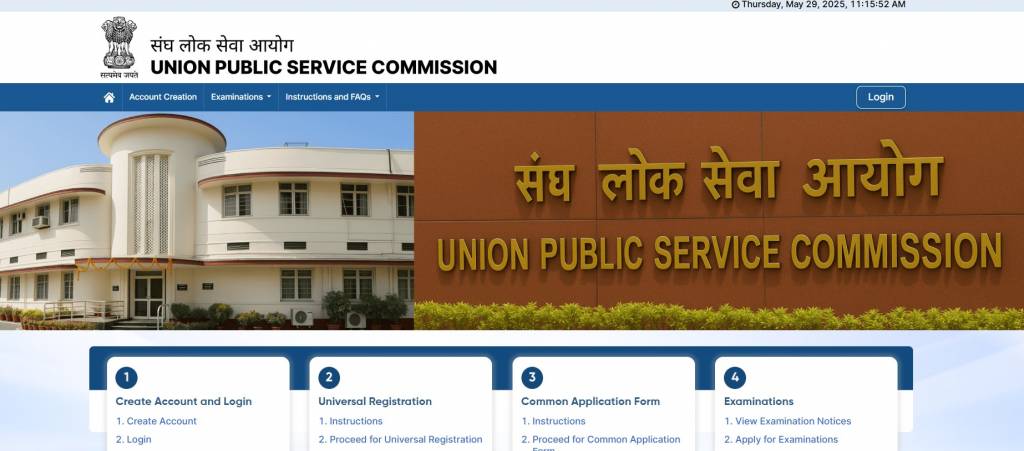
1. Home Page
- Visit upsconline.nic.in
- On the top right corner of UPSC home page, you can see the current date and time, below which you will see the UPSC logo. Below the logo comes the Navigation Bar.
- In the navigation bar, you will find the 'Account Creation', Examination drop-down (which contains a set of links such as view examination notices, apply for exam, my applications) and Instruction and FAQs
-
At the right corner of the Navigation bar, you can find the 'Login' Button, which takes you to the login page. Below the navigation bar, there is a section of four cards which is called the homepage cards.
- The home page cards comprise Account Creation, Universal Registration are common to all examination applications and can be filled out anytime by the candidates. The fourth part i.e. Examination, displays the examination notices as and when notified, the examination application link, and application status
2. Account Creation
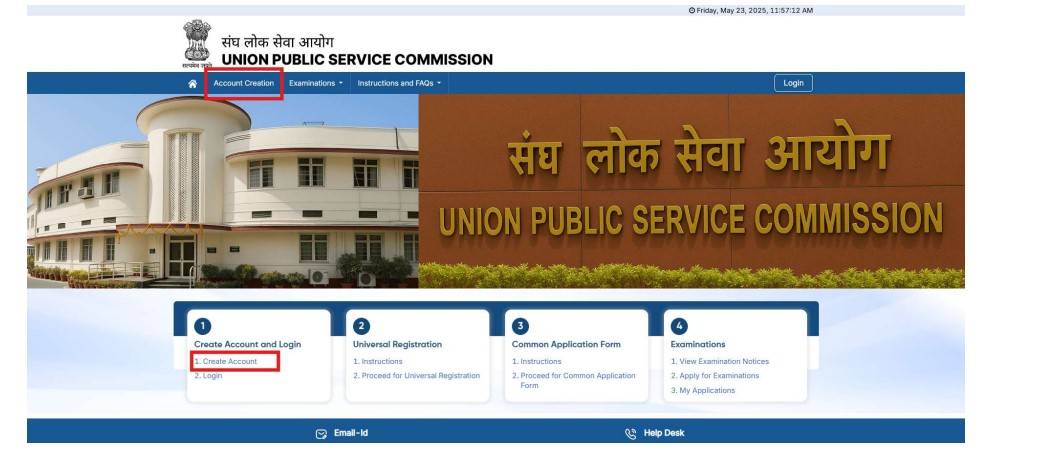
- To apply for the NDA exam, you first need to create an account on UPSC online portal, which can be done by clicking on “Account Creation” link on the navigation bar, or select “Create Account” from the first card
- Read the instructions mentioned on the page before checking the declaration box and clicking Proceed for Account Creation button to continue
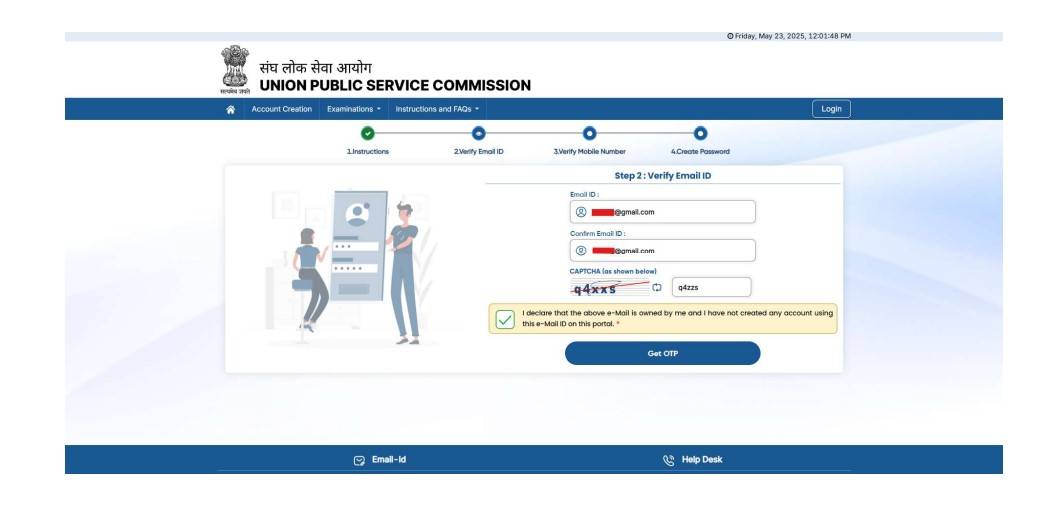
- Below the navigation bar, you can see the status of your account creation. The completed step will be marked in green
-
The next step, you enter your email ID. An OTP will be sent to this email, which you have to enter to verify the email ID
- Similarly, in the next step, you have to enter your mobile number and verify it using an OTP
-
You need to create a password for your account as per the given instructions
- After a successful account success message will be shown, and also an email and SMS will be sent regarding the same
3. Login
- After completing the account creation process, you can login using three following methods:
- Mobile Number and OTP
- URN and Password (URN will be available after completion of Universal Registration)
- Email ID and Password
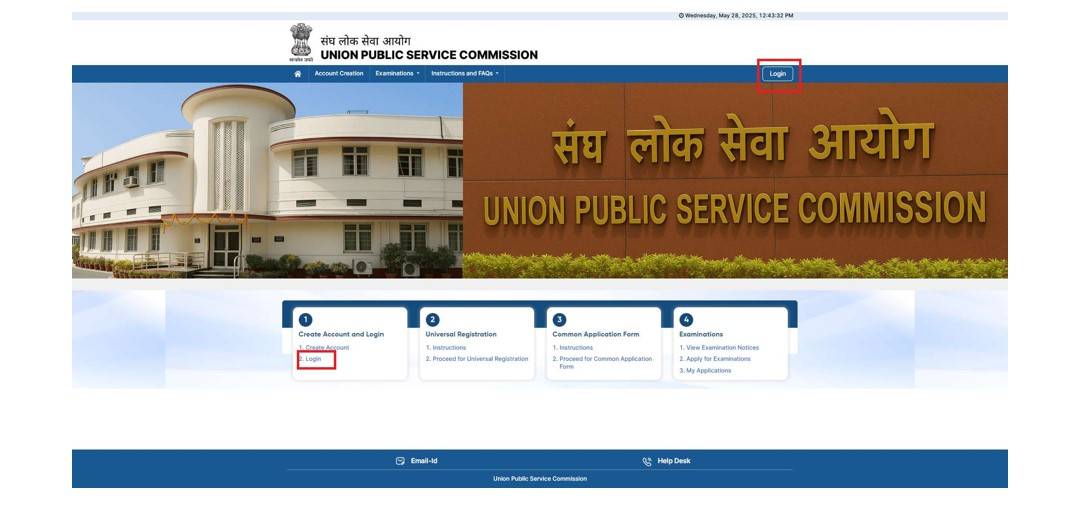
- Click on the Login link, which is on the first card of the homepage
- Click on the Login button located on the top-right corner of the navigation bar
- On the login page, you need to either enter your Mobile Number and OTP, Universal Registration Number (URN) and Password or Email ID and Password along with the captcha verification, and then click the Sign In button to proceed
4. Universal Registration
- Once you successfully log into the portal, you will land on the landing page, i.e., the home page, where you can see the link to Universal Registration either on the navigation bar or in the second card.
- On clicking the Universal Registration link, you will first see the instructions. You must carefully read the instructions before proceeding for the next step. Click the “Proceed for Universal Registration” button to continue
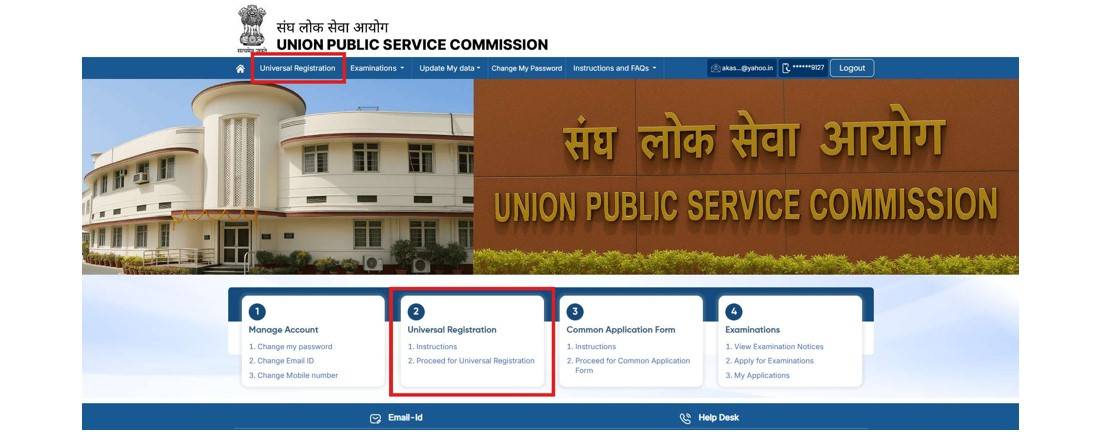
- After acknowledging the instructions, you will begin the Universal Registration (UR ) Process
Provided in the table below the steps for UR process.
| Parameters | Details |
|---|---|
| Identity Profile |
|
| Matriculation Board Profile |
|
| Aadhaar / Photo ID |
|
Universal Registration Number (URN) Generation
- Before submitting the Universal Registration, carefully verify the data entered in all three modules/profiles
- Before the URN is generated, you can edit all three profiles any number of times. However, once the URN is generated, no further changes will be allowed in any of these profiles. Therefore, ensure that all information is accurate before proceeding to generate the URN
- Once you have verified all the data, you can click the 'Lock and Submit' button to complete your Universal Registration and generate the URN
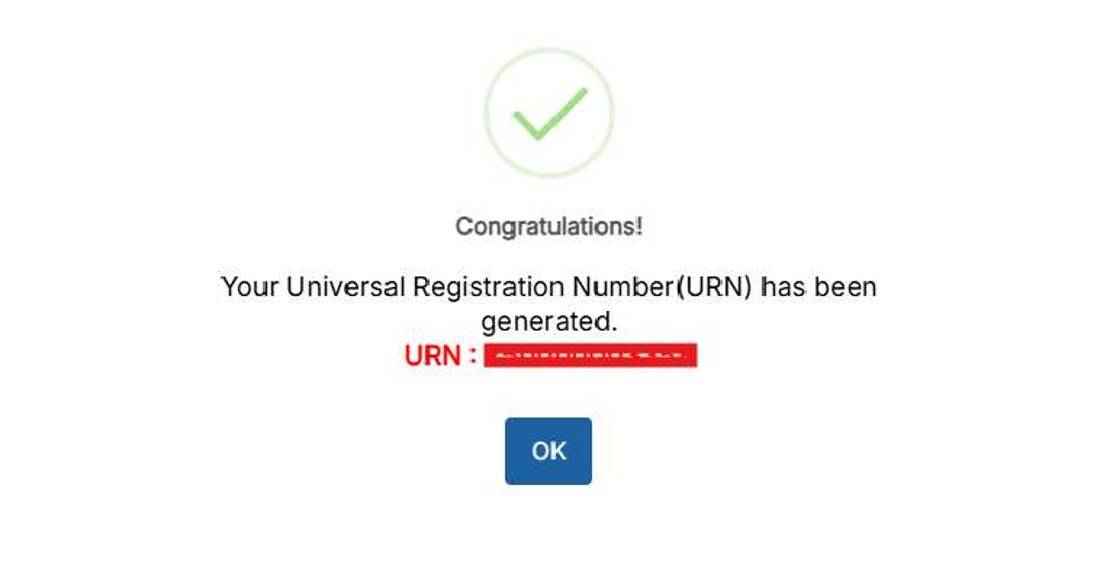
5. Common Application Form (CAF)
The CAF comprises 10 profiles/modules. Candidates can fill the profiles/modules as per their choice except the last one-Photo and Signature profile. The details are given below:
| Parameters | Details |
|---|---|
| Personal Profile | You have to enter your basic personal information such as Nationality, Religion, Mother Tongue, State of Domicile, Marital Status, Place of Birth: Country, State, District and other related details |
| Parents' Profile | You are required to provide the details of your father, mother, or guardian (if applicable) in this profile of CAF |
| Social Category Profile | Category to which you belong: General / SC / ST / OBC / EWS, along with supporting certificate and details |
| Disability Profile | Information regarding any Disability (PwD) or Benchmark disability (PwBD), along with Type of Disability, Percentage, and Disability Certificate details |
| Address | Permanent Address and Correspondence Address along with State, District, and PIN Code. Option to mark both addresses as the same. Along with this Father’s and Mother’s Address also required in this module. |
| Educational Profile | Choose the origin of your education:
Academic qualifications starting from 12th / Diploma / equivalent qualification onwards:
|
| Employment Experience Profile | Details of self employment and employment details, if any:
|
| Achievements |
|
| Previous UPSC Examination Profile | Information about any prior attempts in UPSC examinations:
|
| Upload passport-sized photograph and signature | Upload photograph and signature as per prescribed format and size |
Once you complete the CAF, you can fill the NDA application form.
6. Apply for NDA Exam
To apply for NDA exam, you need to go to the 'Examinations' dropdown and click on the 'Apply for Examination' link after completing the CAF
Lock-Common Application Form (CAF)
After clicking the 'Apply' button, you will need to lock your CAF data for UPSC NDA & NA exam. Once locked, you will not be able to make any changes to your data for that the exam. Therefore, on the next page, carefully verify all your details. If you notice any errors up to this point, please update them. Otherwise, once you lock the data, you will not be able to edit it under any circumstances for that examination
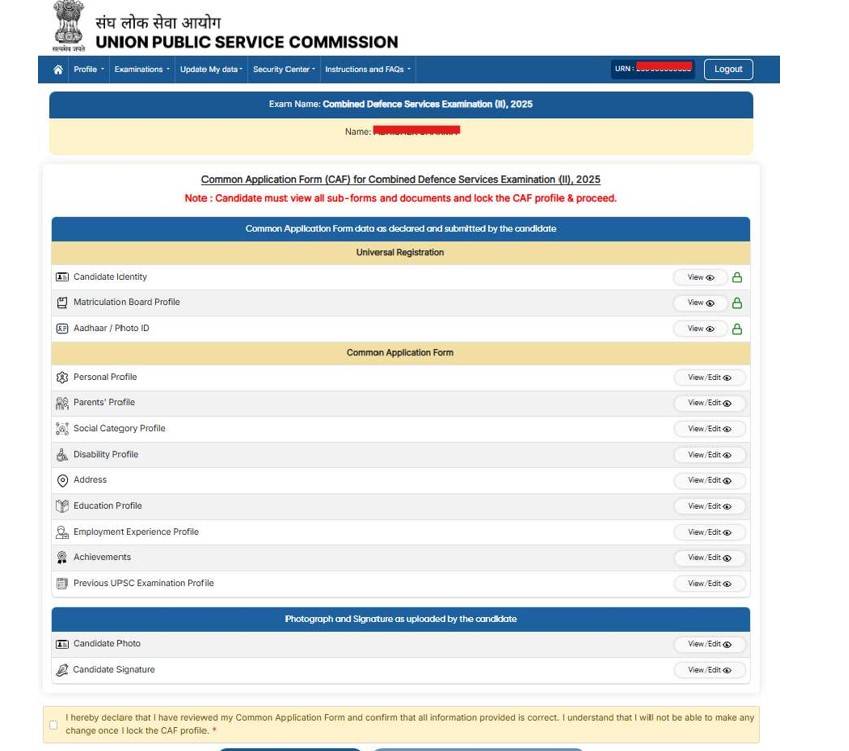
- The button to lock the CAF will be enabled only after you have viewed all the profiles/modules and checked the consent box given below
- Once you have successfully locked the Common Application Form (CAF), verifying and submitting all required modules, the system will automatically enable access to the NDA exam form
- Fill the NDA application form which is a dynamic form that will open based on your CAF and Universal Registration data. You must fill in all the mandatory fields
- Pay the examination fees using debit/credit card, UPI, net banking
- Upon successful payment, a Payment Acknowledgment is
- Choose a preferred examination centre from the available list of test centres
- Submit the final NDA online form
-
Confirm and Submit the Examination Form. A Confirmation Page/PDF is generated and available for download and you can see the submitted applications in the Examinations drop down in the navigation bar
- After clicking the 'Apply' button in the Common Application Form part, candidates are required to lock the CAF data for that particular examination. Once locked, candidates are not able to make any changes in the data. Therefore, on the next page, carefully verify all your details. If candidates notice any errors, they should update them. Otherwise, once they lock the data, editing of the data is not allowed. Candidates are advised to review and verify all information provided in the Common Application Form before locking it. Once locked, the form will be considered final and will be used for NDA exam.
Commonly asked questions
NDA 2 application form was released on May 20, 2026. The last date to fill application form was June 11.
URN is the Universal Registration Number which is generated after filling the Personal Details which once created forms the permanent record of the applicant using which he/she can fill all future applications of the Commission.
Candidate should also have details of one photo ID such as Aadhar Card/ Voter Card/ PAN Card/ Passport/ Driving License/School Photo ID/Any other photo ID Card issued by the State/Central Government while filling the application form. Besides photo-identity proof, candidates are also required to upload their scanned photographs and signatures. Candidates need to bring the same photo-identity proof along with the admit card to the exam centre for appearing the written exam and SSB interview. The photo-identity proof that candidates upload during registration is used for all future reference by UPSC.The application form needs to be filled online only. Candidates must have their photographs and signatures duly scanned in the .jpg format in such a manner that each file should not exceed 300 KB each and must not be less than 20 KB in size for the photograph and signature. Candidates scan their photo-identity proof in PDF only. The size of the PDF file should not exceed 300 KB and must not be less than 20 KB.
NDA Application Fee 2026
To complete the application process, candidates need to pay the NDA 2 application fee. The fee payment can be made through Visa/Master/RuPay Credit/ Debit Card/UPI Payment in SBI branch. Candidates are also advised to keep the receipt of the fee for future reference.
| Category | Application Fees |
|---|---|
| General | INR 100 |
| SC/ST candidates/female candidates/Wards of JCOs/NCOs/ORs | Exempted |
Commonly asked questions
NDA exam is highly competitive. Candidates can crack the exam with proper preparation and practice.
Candidates can select one city for NDA exam while filling the application form. The preferences of exam cities are required to be entered in Part 2 of NDA application form. The exam centres are allotted on a first-apply-first-allot basis. Once the capacity of a particular centre is filled, the same is frozen. Therefore, to get the preferred exam centre, candidates need to apply early. The examination authority reserves the right to allot exam centres to candidates.
NDA application comprises two parts.-I and II. In Part I, candidates need to register, choose branch preference, verify details and generate ID. Part II comprises fee payment, centre selection, uploading the images.
NDA Application Form Correction Window
UPSC NDA application form correction window will be made available by the examination authority so that candidates can edit the details provided in the registration form. Candidates who have completed the final submission of NDA application form are eligible to avail this facility. Incomplete or draft submissions are not eligible for editing. Candidates may be allowed to edit all fields as per the rules during the edit /correction window. After pressing the “Edit Examination Application” button under the Examination tab, candidates are required to open, review, and edit all modules of the Common Application Form (CAF), if necessary.
After making the necessary updates, candidates must lock the CAF in order to proceed further. Once the CAF is locked, candidates must proceed to the exam-specific section. Here also, candidates are required to open, review, and edit all relevant modules, if needed. It is mandatory to Revisit the Fee Payment Section (if applicable), Examination Centre selection and the Declaration section. After completing all the above-mentioned required steps, candidates must submit (by pressing the final submit button) the application form again.
How to edit NDA Application Form?
- Log in using your Mobile and OTP or URN ID and Password Or Email and Password
- Navigate to the ‘Examination’ tab in the navigation bar, then proceed to the ‘Edit
- Examination Application’ section
- Make the required changes
- Review the form carefully before resubmitting
- Submit the updated form
NDA 2 notification was issued on May 20 for admission of eligible candidates to the Army, Navy and Air Force wings of the National Defence Academy and Indian Naval Academy Course. Before applying to the exam, candidates are required to check NDA latest notification so that candidates can get an overview of the exam. Both male and female candidates can apply for NDA examination. The selection of eligible males & females is done through written Examination and SSB interviews. UPSC NDA official notification is released in PDF form on the official website.
Commonly asked questions
Candidates can make corrections in NDA application form except the choice of centre. The facility to make corrections in the application form is made available seven days after the application process closes. In case candidates want to carry out any change in the OTR profile, they need to login into the OTR platform and do the needful accordingly. In other words, no change in the OTR profile can be made by visiting the window for modification in application form. The steps to make corrections in the application form are given below:
- Visit the official website of UPSC
- Login with the OTR portal by entering the required credentials
- In the dashboard, candidates will find the application modification link
- Candidates can make the corrections in the application forms and save the details
NDA application form filling process has been revised. Now the old OTR ID is not applicable. Candidates need to fill the application form as per the new process. Candidates are advised to read the guidelines to fill the application form before proceeding with registration.
The Account Creation details and CAF details including mobile number, email ID, password, URN number are permanent record and will be required every time the candidates fill any application. These may be retained and carefully preserved.
Sarkari Exams exams you must check out
Exams which are to be conducted soon

Sep '26
Aug '26
22 Aug '26 - 23 Aug '26
13 Sep '26
22 Aug '26 - 23 Aug '26
NDA Application Form 2026 FAQs
Candidates can check below NDA application form FAQs.
NDA exam is conducted twice a year by UPSC. Candidates can appear for both the sessions of NDA exam. NDA 1 exam is conducted for admission to the courses commencing in January. NDA 2 exam is conducted for admission to the courses commencing in July. To qualify each section of the NDA exam, candidates need to secure 25 per cent in each subject. NDA exam is conducted to select candidates for admission to the Army, Navy and Air Fotce wings of National Defence Academy and Indian Naval Academy.
NDA apply online link is activated on the official website of the exam conducting body. However, we will provide the direct link to register online for the exam. Only online applications are accepted for the exam.
UPSC has no provision to refund any fee amount paid by candidates. Banks concerned may be approached for claiming any extra/unsuccessful payments made by the candidates.
Candidates can fill the NDA application form only after creating their profiles with UPSC. To create profile, they need to enter personal information, qualification, work experience, etc. After creating the profile, candidates get the unique registration ID.
NDA exam is conducted every year twice. This is conducted to select candidates for admission to Army, Navy and Air Force wings of NDA and Indian Naval Academy courses. Total marks allotted to the written exam are 900. The SSB interview carries 900 marks.
UPSC has no provision to refund any fee amount paid by candidates. Banks concerned may be approached for claiming any extra/unsuccessful payments made by the candidates.
You can abbreviate your name within 30 characters and fill it in the name column of NDA application form. You need to send a signed written request to Joint Secretary (Examination), UPSC Dholpur House, Shahjahan Road, New Delhi 110069 by speed-post or fax by giving details of the full name and reasons for abbreviation in this regard. Applicants need to fill NDA application form online. Candidates are not required to sent the hard copy of the NDA application form. The application form can be filled in two parts. In Part 1 of NDA application form, candidates need to fill register for the exam, choose the preferred branch, verify the details and generate the registration ID. In Part 2, candidates need to select the exam centre, upload scanned images of photograph and signature. Before filling the application form, candidates need to complete the one time registration.
NDA Exam
Student Forum
 Anything you would want to ask experts?
Answered 2 months ago
Yes, you can give the NDA exam as you have qualified the Class 12 exam. As per the age requirement candidates age should lie between 16.5 to 19.5 years to apply for the NDA exam. However, go through the eligibility criteria properly once before applying for the exam.
S
Contributor-Level 7
Upcoming Sarkari Exam Dates
UGC NET June 2026 Provisional Answer Key 13 Aug '26 - 15 Aug '26 IBPS Clerk 2026 Application Form 1 Aug '26 - 21 Aug '26
I am 18 years old (DOB: 26 Oct 2007) and passed Class 12 with 83%. Am I eligible to apply for the NDA exam?